What this covers
- Choose a latest-version or full-history migration deliberately.
- Keep one target document mapped to each in-scope source document.
- Reconcile document, version and link records separately.
Uploading every file does not prove a Salesforce Files migration is complete. A document may have several versions, and the same document may be linked to more than one customer, case or contract.
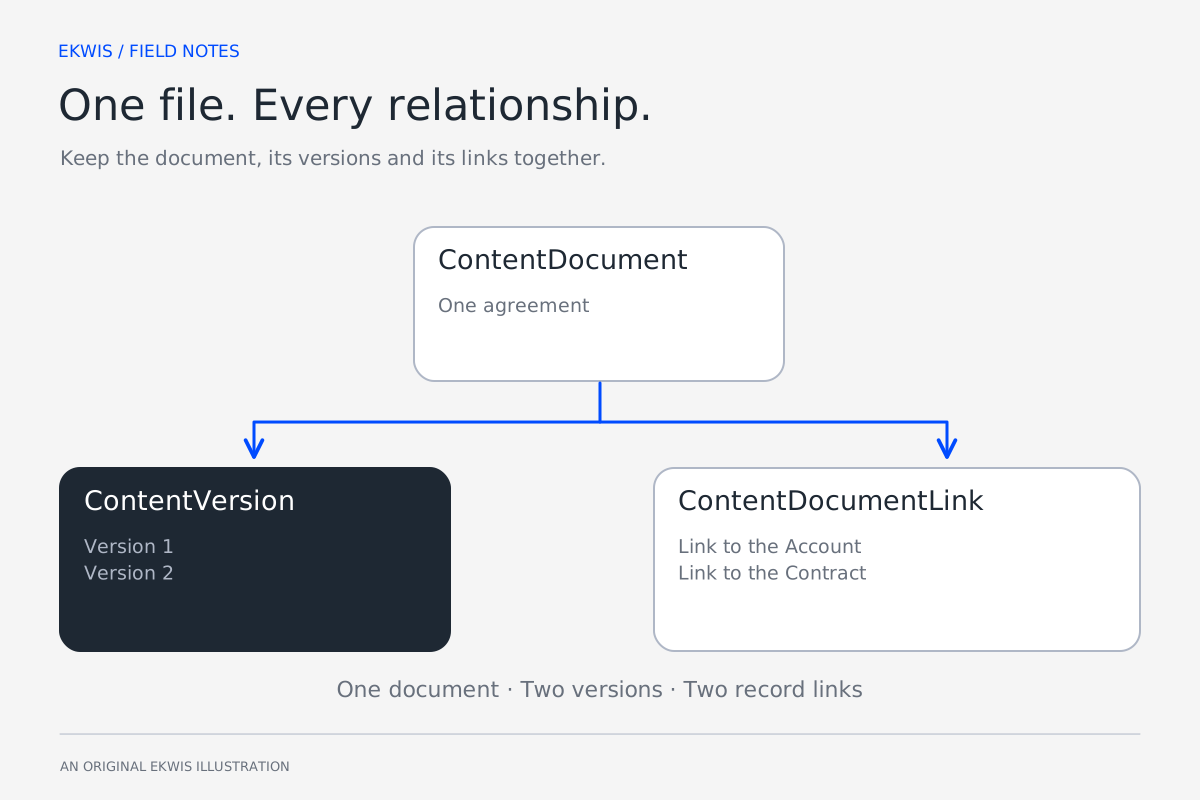
ContentVersion holds the version and its content. ContentDocument groups the versions. ContentDocumentLink connects the document to Salesforce records and other supported destinations. The migration needs a plan for all three.
Choose what you are moving
| Decision | Effect on the migration |
|---|---|
| Latest version or full history | Determines how many ContentVersion records need to be exported and recreated. |
| Which business records are in scope | Determines the record links that need a target destination. |
| Ownership, sharing and audit fields | Determines the permissions, user mappings and additional checks needed. |
| Libraries, private files and exceptional content | May require a separate migration path rather than a standard record-link load. |
| File sizes and total content | Determines the upload route, batching and storage requirements. |
A small example exposes the relationships
Suppose one agreement has two versions and is attached to both an Account and a Contract. These symbolic IDs describe the mapping; they are not Salesforce record IDs to paste into a load.
| Source | Target requirement | Reconciliation |
|---|---|---|
| Document A | One target ContentDocument | One source document maps to one target document. |
| Document A: versions 1 and 2 | Two ContentVersion records under that document | Both versions exist and the intended latest version is current. |
| Document A → Account A | Link to the migrated Account | The document is available from the correct Account. |
| Document A → Contract A | Link to the migrated Contract | The same document is available from the correct Contract. |
In this example a full-history migration has one document, two versions and two business-record links. A latest-only migration has one document and one version, while still requiring both links. Keep those expectations separate.
Export metadata and content together
Retain the complete source export, including the binary content and the metadata needed to connect it. Keep archives unchanged and record checksums before preparing working copies. Split exports must stay together so a metadata file is not separated from content in another archive.
For selected documents, an inventory can include the fields below. Replace the example document ID with the exact in-scope IDs. For a latest-only export add the IsLatest filter; for full history retain all required versions and sort VersionNumber numerically when preparing the load.
SELECT Id, ContentDocumentId, Title, PathOnClient,
       ContentSize, VersionNumber, IsLatest
FROM ContentVersion
WHERE ContentDocumentId IN ('069...')
SELECT ContentDocumentId, LinkedEntityId, ShareType, Visibility
FROM ContentDocumentLink
WHERE ContentDocumentId IN ('069...')Keep versions under the same target document
Create the first target version by inserting ContentVersion without a ContentDocumentId. Salesforce creates the document. Read the inserted version back to obtain its ContentDocumentId, then record the source-to-target mapping.
For full history, process the required source versions oldest first. Supply that same target ContentDocumentId when inserting each later version. Inserting every source version as a new file would create separate documents instead of the intended history.
FirstPublishLocationId can create an initial relationship when the first version of a new document is inserted. It is only available on that first insert. If you use it, account for the link already created when preparing the remaining links.
Rebuild links using target IDs
Each link requires the target document ID and the target LinkedEntityId. The Account, Contract and other record migrations therefore need their own mapping tables before the file links can be rebuilt.
- Translate both sides of each source link through the appropriate mappings.
- Check that ShareType and Visibility are valid for the target relationship.
- Hold links with a missing or out-of-scope target for an explicit decision.
- Treat library and other non-record destinations as separate paths where required.
- Check whether an initial publish step or earlier batch already created the relationship.
Make retries and sign-off explainable
Record the exact batch input, successful target IDs and failures. Retry only the rows that need another attempt. If a batch needs correction or removal, use its recorded target IDs and an agreed recovery step; matching files by title is not a reliable rollback plan.
| Check | Evidence |
|---|---|
| Completeness | Expected documents, versions and links compared separately with the target. |
| Content | File sizes or checksums where reliable, plus downloaded samples that open correctly. |
| Relationships | Files are available from the correct records, including documents with multiple links. |
| Access | Representative end users can see the intended files and cannot see excluded material. |
| Exceptions | Every failed, excluded or held item has a recorded reason and owner. |
The result to sign off is a usable file history on the right Salesforce records. The upload job is one part of that evidence.
Official references
- ContentVersion object reference — Salesforce Developers
- Insert a new file version through the API — Salesforce Help
- ContentDocumentLink object reference — Salesforce Developers